Your laptop fan sounds like it’s about to take flight. Even when you’re just browsing a few tabs or staring at an empty desktop, it keeps spinning at high speed. Is something wrong, or are laptops just like this these days?
Most of the time, the fan is simply doing its job: controlling temperatures. But when the fan keeps running at high speed during light use or while completely idle, it can point to a software, dust, or hardware problem that needs fixing. Below is a clear explanation of when constant high fan speed is normal, along with a practical diagnostic method.
When Is It Normal for the Fan to Keep Running at High Speed?
Compared with desktop PCs, laptops have limited space for cooling. When the CPU, GPU, or other components generate heat, the fan speeds up. The following situations are perfectly normal:
- You’re running demanding tasks, such as a video call with screen sharing, light photo editing, multiple browser tabs playing video, or even Windows Update or macOS indexing running in the background.
- The room is warm, or the laptop is sitting on a soft surface such as a bed, couch, or blanket that blocks the vents.
- You just finished a heavy task such as gaming, rendering, or compiling, and the system is still cooling down.
- The laptop is charging under any load. Charging itself generates heat.
In these cases, fan noise is a protective mechanism, not a malfunction. As long as the cooling system responds promptly, modern chips can run hot under heavy loads without being damaged.
What Causes the Fan to Keep Running While the Laptop Is Idle?
“Idle” is a relative concept. Even when you aren’t actively using the computer, many processes keep running.
Background Software Activity
Windows Search indexing, antivirus scans, cloud sync (OneDrive, Dropbox, Google Drive), browser processes, or poorly optimized apps can all consume CPU resources. On macOS, Spotlight, Time Machine, or photo analysis can also keep the CPU busy. A single demanding process can raise temperatures enough to keep the fan noisy.
Dust and Blocked Airflow
Over months or even years, dust builds up on fan blades and heatsink fins. The fan has to spin faster to move the same amount of air. Soft surfaces or objects blocking the intake vents make this worse.
Aged Thermal Paste or Poor Contact
The thermal paste between the CPU/GPU and the heatsink dries out over time. Heat transfer becomes less efficient, so the fan has to work harder even under light loads.
Power and Thermal Settings
Some laptops ship with aggressive performance modes or outdated power plans that keep CPU frequencies too high. A dedicated GPU that can’t switch to integrated graphics also raises system temperatures.
Software or Driver Problems
An outdated BIOS, chipset drivers, or GPU drivers can sometimes cause inaccurate temperature readings or improper power management. In rare cases, malware or cryptocurrency mining programs run in the background and create a constant load.
Hardware Problems
A failing fan bearing, a damaged temperature sensor, or a loose heatsink can all cause the system to misjudge temperatures, or to actually run hotter than normal.
How to Troubleshoot Step by Step
Work through the following checks in order. Most problems are resolved within the first few steps.
Check CPU Usage
Windows: Open Task Manager (Ctrl + Shift + Esc) and go to the Processes tab. Sort by CPU usage. Look for processes that consistently use more than 10 to 15 percent of the CPU while the computer is idle. End unnecessary tasks, and note any process that keeps consuming CPU.
macOS: Open Activity Monitor and go to the CPU tab. Sort by CPU percentage.
Common CPU-heavy culprits: browsers with many open tabs, cloud sync clients, Windows Search, and full antivirus scans.
Monitor Temperatures
Free tools such as HWMonitor, Core Temp, or Open Hardware Monitor on Windows, or iStat Menus and TG Pro on macOS, can show real-time CPU and GPU temperatures. If the laptop’s idle temperature stays above roughly 60 to 70°C, or consistently exceeds 85 to 90°C, that points to a cooling or software problem.
Improve Airflow Right Away
Place the laptop on a hard, flat surface. Avoid beds, blankets, or your lap, which can block the vents. A simple laptop stand or cooling pad helps, but fixing the root cause is far better than relying on an extra fan indefinitely.
Clean the Vents and Fans
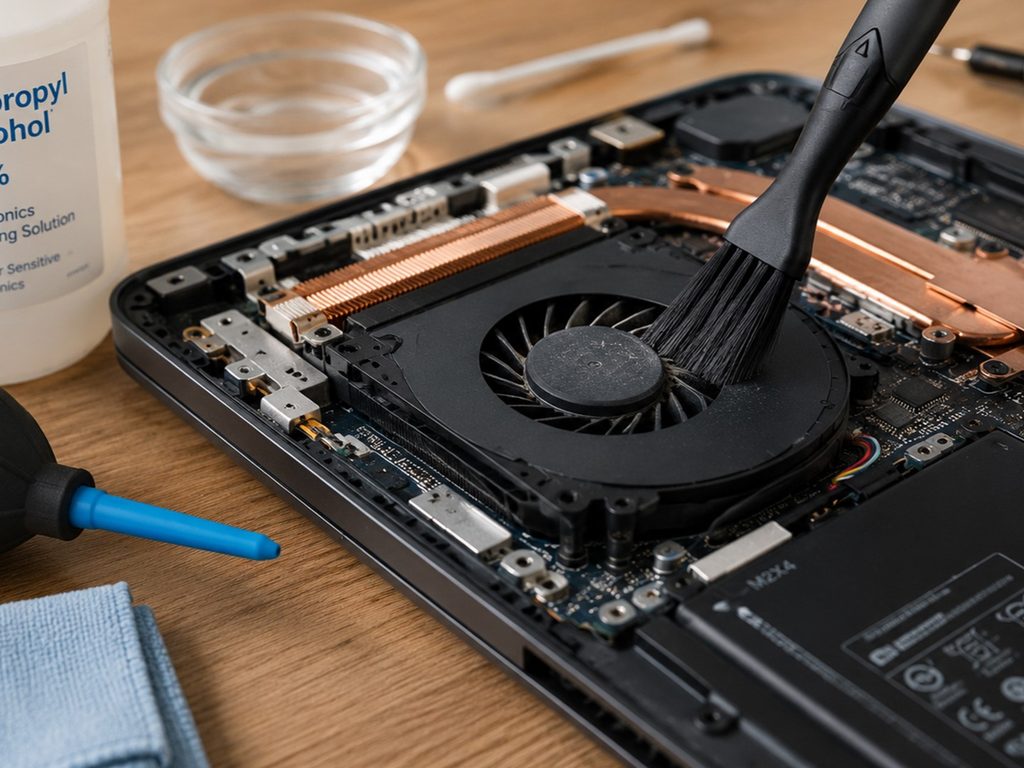
Shut down the laptop, unplug the power cord, and use compressed air to blow dust out of the intake and exhaust vents. If possible, hold the fan blades in place so they don’t spin freely and generate voltage. For heavier buildup, carefully opening the bottom cover (if you’re comfortable doing so) and cleaning the fan and heatsink is more effective. If you use your laptop daily in a dusty environment, do this every 6 to 12 months.
Update Software and Drivers
Install the latest Windows or macOS updates. Then update the chipset, graphics, and BIOS/UEFI firmware from the laptop manufacturer’s support site. Outdated power management drivers are a common cause of erratic fan speeds.
Adjust Power and Thermal Settings
Windows: Go to Settings, then System, then Power and battery, then Power mode, and choose Best power efficiency or Balanced. In the advanced power options, you can lower the maximum processor state slightly (to 99 percent, for example) as a temporary test.
Many gaming or creator laptops come with vendor control software such as Lenovo Vantage, Dell Power Manager, or ASUS Armoury Crate. Switch the mode from Performance or Turbo to a quieter or balanced mode.
Rule Out Malware
Run a full scan with Windows Defender or a reputable third-party scanner. Persistently high CPU usage with no obvious visible process can sometimes indicate a malware infection.
Test in a Clean State
Restart the laptop and wait 10 to 15 minutes without opening any applications. If the fan still runs at high speed, boot into Safe Mode on Windows or safe boot on macOS, then check the temperatures again. High temperatures even in a minimal environment are more likely caused by dust, thermal paste, or hardware issues.
If the fan is still loud after cleaning, updating the system, and confirming that CPU usage is low, the thermal paste may need replacing, or the fan or sensor may be faulty. At that point, the usual next step is to contact a repair shop or the manufacturer’s after-sales service, especially if the laptop is still under warranty.
Quick Prevention Habits
- Keep the vents clear, and clean the laptop regularly.
- Avoid placing the laptop on soft surfaces.
- Pay attention when fan noise gradually gets louder. Cleaning early is far easier than repairing later.
Most problems ultimately come down to dust and a few background processes. Checking Task Manager and blasting the vents with compressed air usually resolves most cases without opening the laptop. If CPU usage is low but the heat and noise