Usually, it all starts with a screenshot. You go to save one, and your phone pops up a small gray dialog box: “Cannot Take Screenshot. Storage Full.” Then the camera app starts refusing to record. Suddenly, you are up in the middle of the night frantically deleting photos.
The good news is that a few good habits, an inexpensive accessory, and a sensible cloud storage plan can keep even a 128GB phone running comfortably for years.
How much storage do you actually need?
128GB is still the most common capacity, mainly because it has been the default for years. But that is no longer where the market is heading.
Apple’s latest entry-level iPhone starts at 256GB, and so do most Android flagship phones currently on sale. In other words, 256GB is becoming the new standard for a phone you plan to keep for a long time.
Above that, 512GB is enthusiast territory, aimed at people who shoot a lot of 4K video and keep large offline music or game libraries. 1TB is for content creators and professional phone photographers who use their phone as their main camera.
In practice, people usually use between 60GB and 150GB of a phone’s storage. The operating system alone takes up about 15GB to 25GB, so a “256GB” phone offers close to 230GB of actual usable space.
My rule of thumb is to buy one storage tier higher than you think you need. On almost all modern phones, the storage is soldered to the motherboard and cannot be upgraded later. Instead of living with the constant anxiety of running out of space, spend an extra $50 to $100 on storage when you buy the phone.
How do you free up space on a smartphone?
Step 1: Find out what is really taking up space
iPhone: Settings → General → iPhone Storage. You will see a ranked list of apps, some recommendations, and a “System Data” figure that is often unusually large.
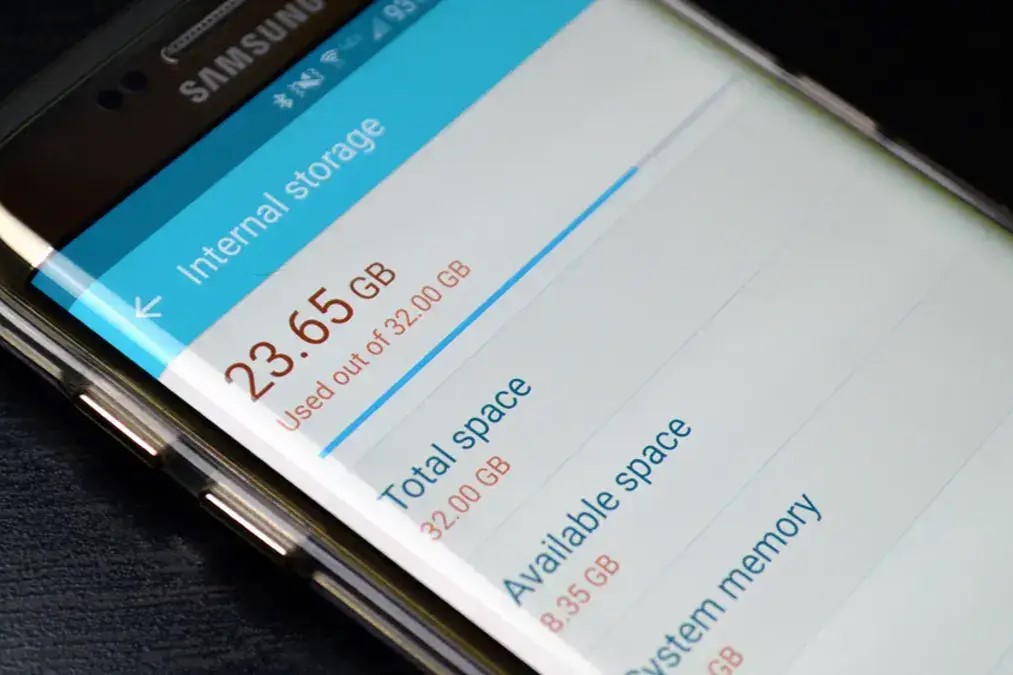
Android: Settings → Storage. On Samsung phones, it is under “Battery and device care.” Google’s Files app also offers a cleanup view that shows large files, duplicate files, and junk files.
Step 2: Free up space while keeping the memories that matter
Photos and videos
Switch to efficient formats. HEIC and HEVC significantly reduce file size with very little loss of quality. On iPhone: Settings → Camera → Formats → High Efficiency.
Turn on cloud photo backup, then optimize storage. With iCloud Photos, turn on “Optimize iPhone Storage” so full-resolution originals stay in the cloud while thumbnails remain on the phone. On Android, back up with Google Photos, then use “Free up space” to remove duplicate photos that have already been safely uploaded.
Clean out junk photos. Screenshots, duplicate burst shots, blurry pictures, and more. Every phone’s gallery now has a “Duplicates” or “Best Photos” view, so put it to use.
Empty the “Recently Deleted” folder. Most phones keep deleted photos for 30 days by default, and those photos still take up space. You can clear them out early.
Chat apps and messages
WhatsApp, Telegram, and Discord all quietly eat into your storage because they cache every photo, voice message, and video you receive.
- WhatsApp: Settings → Storage and data → Manage storage, then turn off automatic video downloads over Wi-Fi and cellular.
- Telegram: Data and Storage → Storage Usage → Clear Cache. This is safe, and media files will download again when you need them.
- iMessage: Settings → Messages → Keep Messages → 1 Year, and review the list of attachments.
Apps and games
- iPhone: Offload apps you do not use often (Settings → General → iPhone Storage → select the app → Offload App). The icon and data stay, but the app files are removed. Reinstalling the app is instant.
- Android: Use the Play Store’s auto-archive feature, or clear an app’s cache under Settings → Apps → select the app → Storage. For stubborn apps, uninstall and reinstall. This clears out years of accumulated cache in a way no “cleaner” app can.
Delete games you have already played. If you have not opened a game or app in three months, it is time to consider deleting it.
Downloads and offline media
Check your Downloads folder, podcast apps, downloaded albums in Spotify, offline movies in Netflix, and offline maps. Delete anything you do not need.
Add external storage
External storage cannot save a phone whose built-in capacity is too small to begin with, but it is ideal for offloading media files, transferring large files, and backing up before a phone reset.
microSD cards: If your Android phone supports “expandable storage,” understand the advantages and disadvantages. This feature merges the card into the phone’s storage, but a slow card can slow down the entire phone, and a card failure can cause data loss. For most people, portable storage is the safer choice. Format cards larger than 32GB as exFAT.
USB-C hard drives and SSDs: Android supports them natively through OTG. On iPhone 15 and later models, they appear in the Files app. If you shoot ProRes video, newer iPhones can record directly to an external SSD, which is a genuinely great feature for creators.
Always eject a card safely before removing it, and never treat any card or drive as your only backup. Flash memory fails, and it usually fails at the worst possible time.
Use cloud storage wisely
Used well, cloud storage can give a 256GB phone the storage capacity of 1TB. Used poorly, it simply moves the problem somewhere out of sight.
iPhone users get 5GB of free cloud storage through iCloud. For 50GB, 200GB, or 2TB, you need a paid iCloud+ subscription.
Google Drive is integrated into the Android ecosystem but also works on iOS. It offers 15GB of free storage, making it one of the most generous cloud services available. For more space, you need a Google One subscription.
Maintenance and routine
Storage management is a maintenance habit, like changing the oil in your car on a regular schedule.
We recommend reviewing your storage breakdown once a month. This helps you catch anything that has grown unexpectedly. Also empty the Downloads, Screenshots, and Recently Deleted folders on a regular basis. Uninstall apps you have not opened in the past month.
Every six months or once a year, copy a complete archive of your photos and videos to a portable SSD or a computer.
If your storage usage still stays above 85% after proper maintenance, it is time to consider a higher-capacity phone for your next purchase.